Framer Guides
What Can You Edit in a Framer Template?

Bryan Hermoza

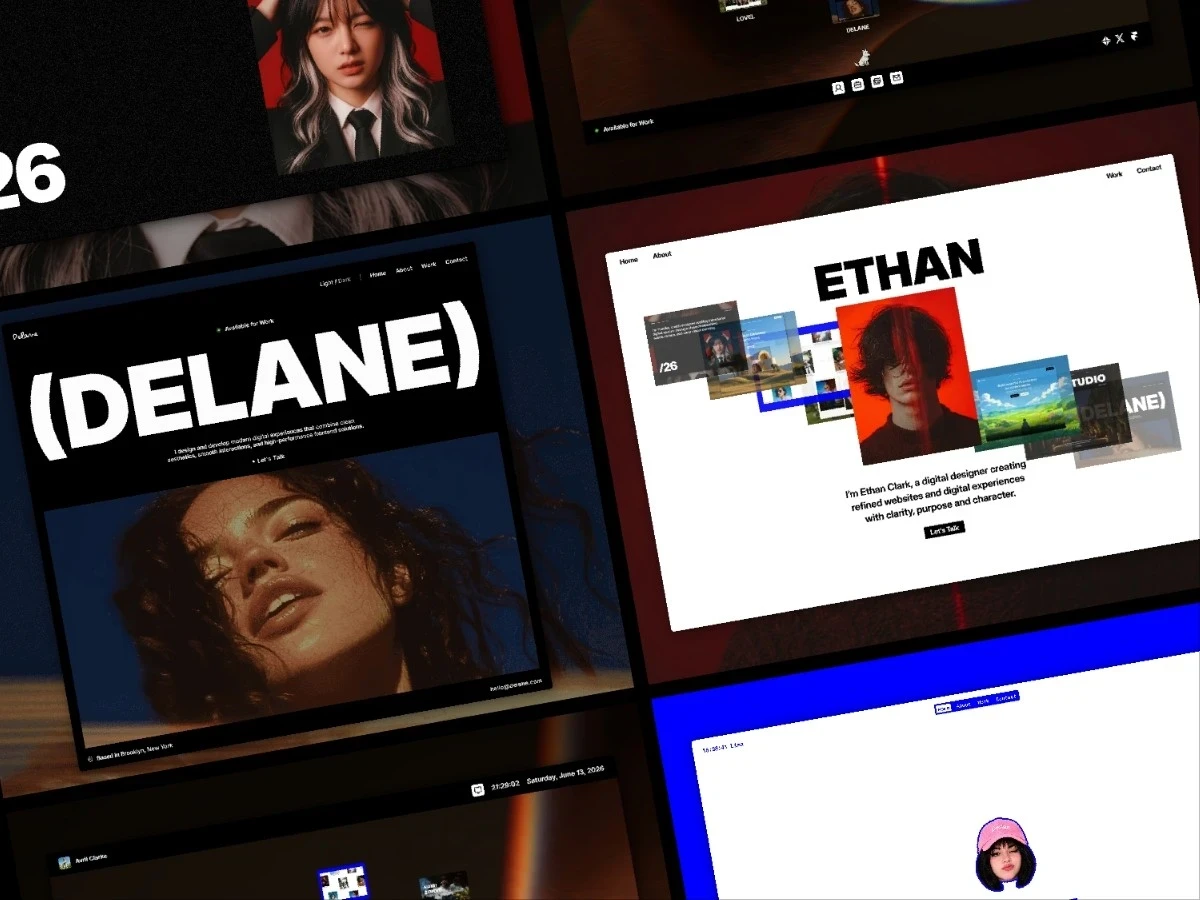
When you find a Framer template you like, one of the first questions is usually how much you can actually change.
Maybe you like the structure, interactions, or overall idea, but you probably don’t want your finished website to look exactly like the original demo.
The good news is that once a Framer template is added to your workspace, you can customize it like any other Framer project. You can keep the parts that made you choose the template in the first place and change the rest around your brand, content, projects, or business.
So, what can you actually edit?
Colors and Fonts
Colors and typography are usually the quickest way to make a Framer template feel completely different.
You can change the colors used throughout the site, replace the original fonts, adjust text styles, sizes, weights, and other visual details to match your own identity.
When a template uses shared styles and variables, a single change can also update multiple elements across the website, making it much easier to keep everything consistent.
Text, Images, and Videos
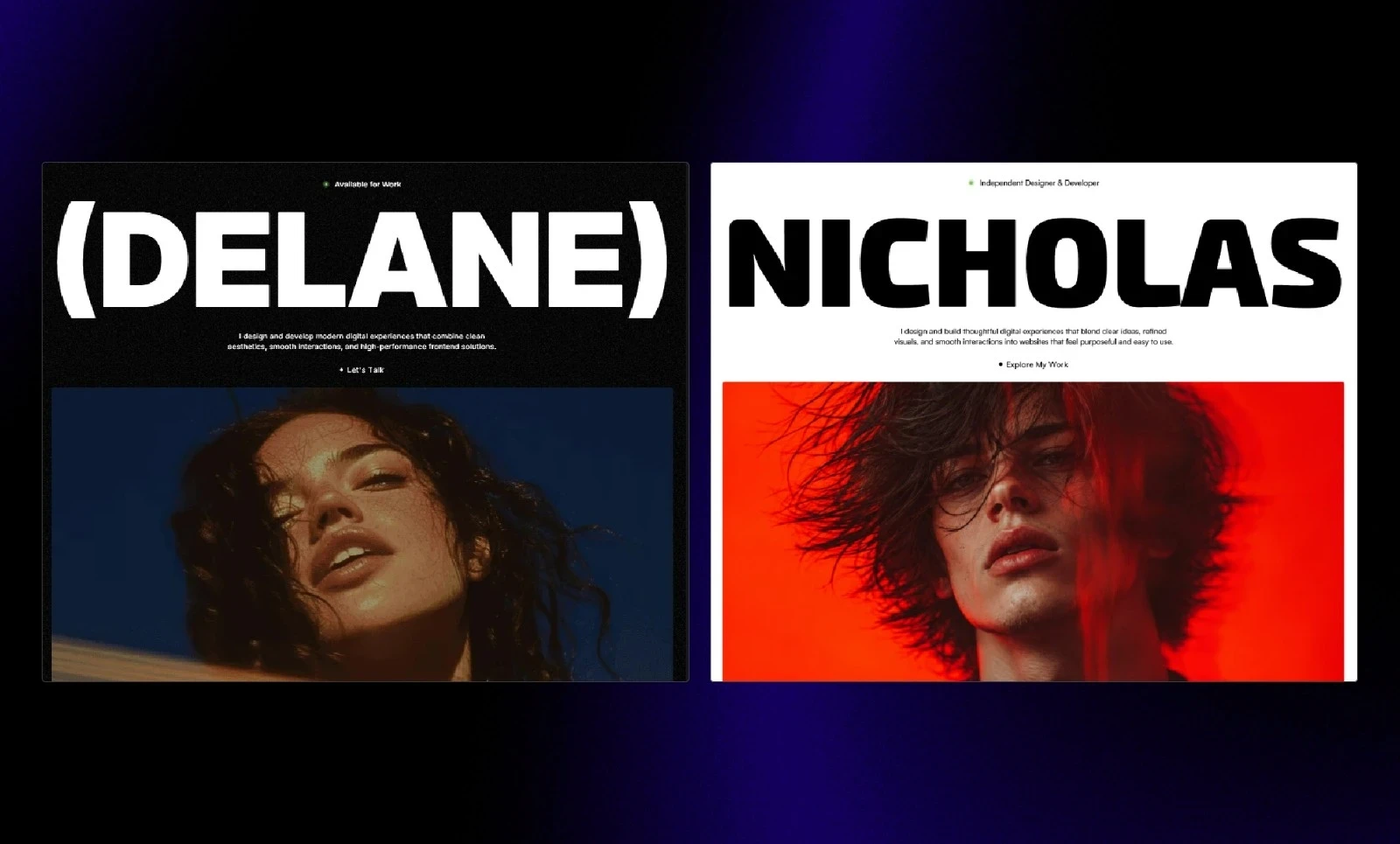
All of the demo content can be replaced with your own.
You can edit text directly in Framer, replace images with your own photography or project work, change videos, update links, and modify the content used throughout each page.
This means names, descriptions, project information, personal details, media, and most of what visitors actually see can be adapted to fit your website.
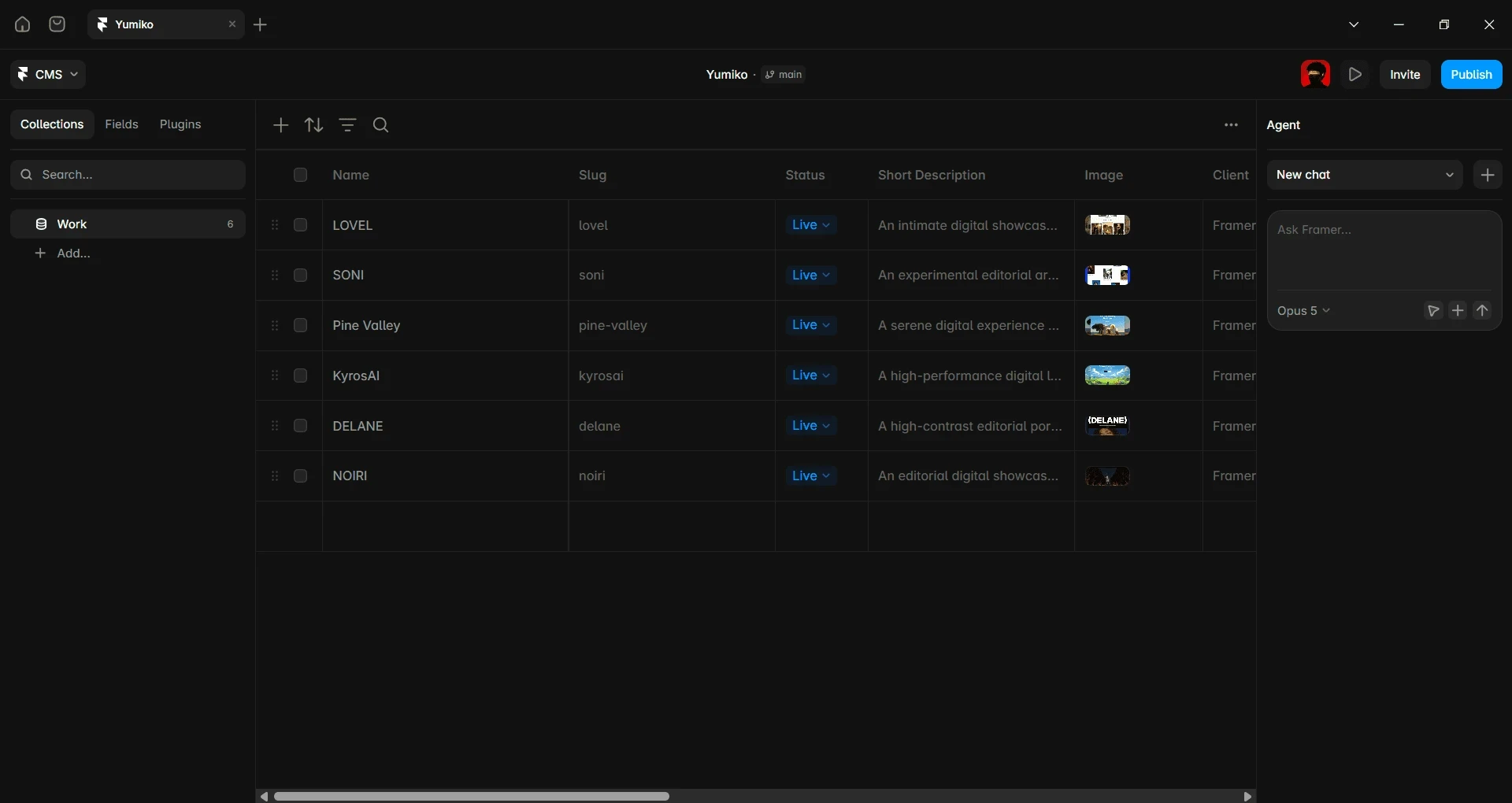
Projects, Blog Posts, and Framer CMS Content
If the template uses Framer CMS for projects, blog posts, services, or other repeated content, you can replace the existing items and create new ones without redesigning the page every time.
The CMS page acts as a shared structure, while each item provides its own content.
For a portfolio, for example, you can replace the demo projects with your own work and continue adding new projects later while keeping the same overall system.
Components, Buttons, and Interactions
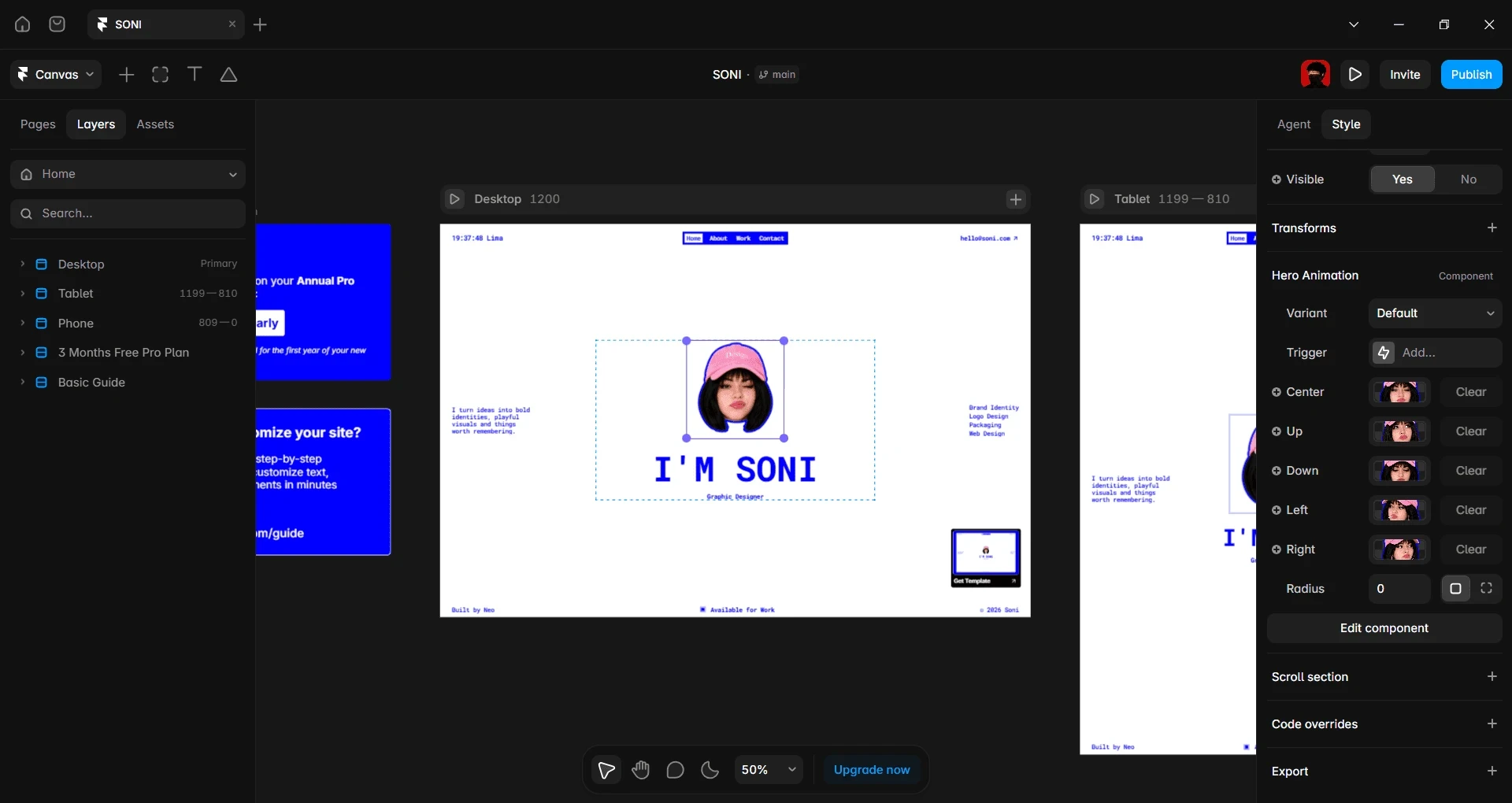
Framer components can also be customized.
Depending on how the template was built, you may be able to change text, images, links, colors, and other options directly from the component controls.
You can also edit the component itself if you want to make deeper changes.
That means you can keep an interaction you like while changing everything around it, or modify the experience further as your website evolves.
Navigation, Footer, and Shared Elements
Navigation bars, footers, announcement bars, and other elements used across multiple pages can also be changed.
Templates may use shared components or Layout Templates so you can update these elements from one place instead of editing the same content separately on every page.
You can replace navigation links, social profiles, contact information, buttons, and other shared content with your own.
Forms and Links
You can also customize how visitors interact with your website.
Buttons can link to your own pages or external destinations, while forms can be updated with the fields, labels, placeholders, and destination email that you need.
So the contact form included in the demo can become the actual form you use to receive inquiries from your website.
Page Layout and Structure
You’re not locked into the original layout either.
You can move elements, remove sections, add new content, change page structures, create additional pages, and adapt the template around what your website actually needs.
This is one of the biggest advantages of using a Framer template: you don’t have to choose one because every detail is already perfect.
You can choose it because the starting point is right, then build on top of it.
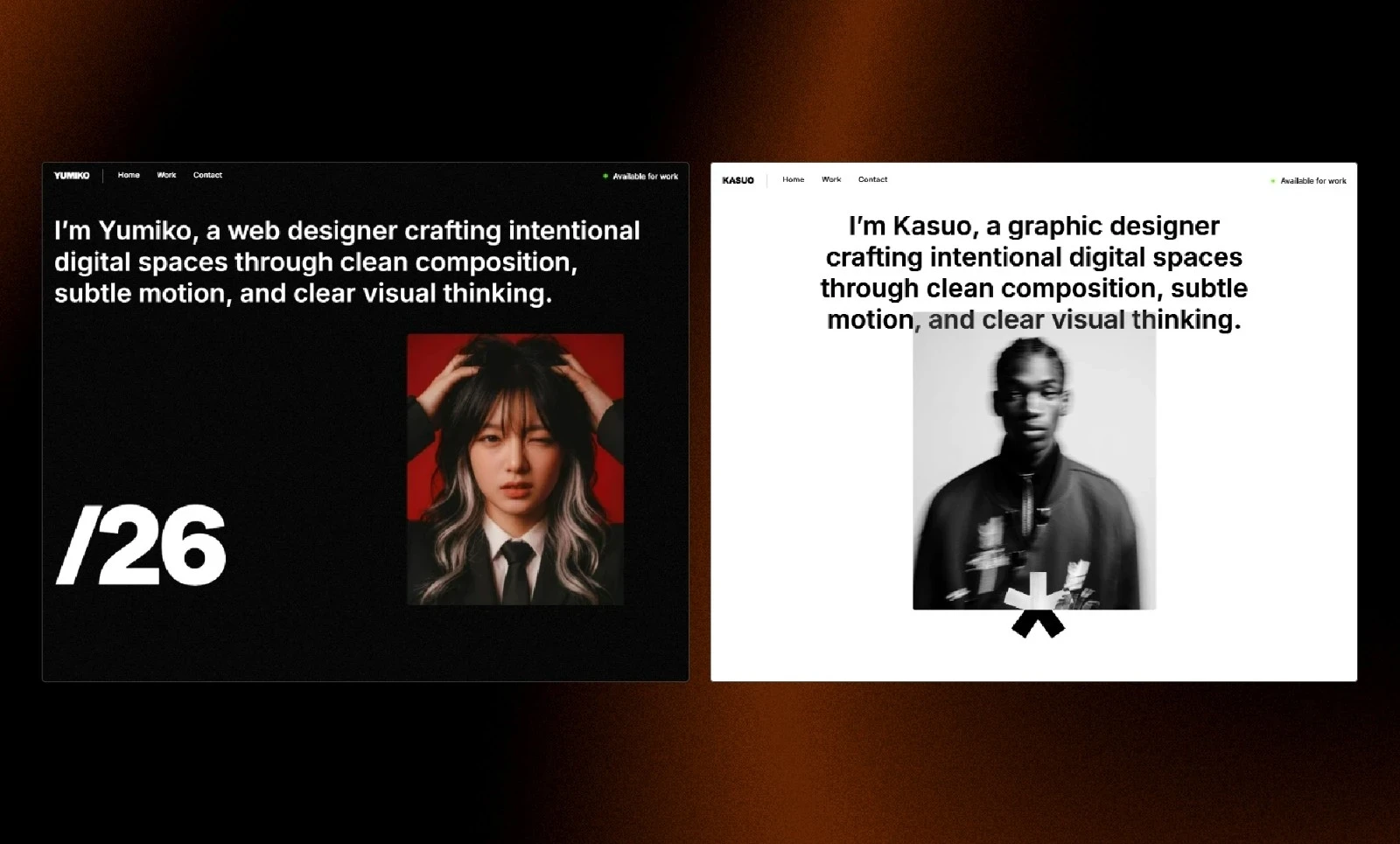
How Much Can You Really Customize a Framer Template?
In practice, almost the entire project.
You can start with simple changes like replacing text, images, colors, and fonts, or go much further by changing projects, components, interactions, layouts, and entire pages.
A good template shouldn’t decide what your finished website has to look like. It should remove the difficulty of starting from scratch and give you a solid foundation that you can shape around your own work, brand, or business.
If you already have a template and want to learn how to customize it step by step, follow the Framer Template Guide.
Ready to customize your template?
Learn how to edit colors, fonts, content, CMS collections, components, forms, domains, and more in Framer.
More articles
Explore more articles
Explore more articles, tips, and resources to help you get the most out of Framer.